
How to Read ePlatform eBooks with Adobe Digital Editions
by ePlatform Collection Management | Oct 22, 2025 | Categories : Americas Asia AU & NZ Articles Tips and Tricks UK & Europe
Estimated reading time: 7 minutes | Last updated: October 2025
When your school starts using ePlatform, you will see how simple it is for students to begin reading. Most readers choose the ePlatform App or Web Browser, which are fast, accessible, and include features such as dyslexia-friendly fonts, adjustable text sizes, and offline access once a book has been opened.
However, some schools also use eReaders like Kobo, which are not compatible with the ePlatform App or Web Browser. In these cases, Adobe Digital Editions provides an alternative way to download and read eBooks from ePlatform.
Adobe Digital Editions is a free reading application that supports ePlatform eBooks on desktop computers and eReaders. It is especially helpful for schools that use a mix of devices or want another way for students to access their library.
In this guide, we will explain what Adobe Digital Editions is, how to read ePlatform's eBooks via Adobe Digital Editions, and when it might be the right choice for your school.
Key Takeaways
- Adobe Digital Editions is a free reading application that lets schools download and manage eBooks on a computer or compatible eReader such as Kobo.
- It is mainly used when a school wants to read eBooks on eReaders that do not support the ePlatform App or Web Browser.
- PDF's and eBooks (EPUB) can be read in both the Web Browser and App, although advanced tools like the Settings Wizard and Immersive Reader are only available for EPUB-format titles.
- The ePlatform App and Web Browser remain the most accessible and feature-rich options for everyday reading, offering instant access, offline reading, and built-in accessibility tools.
Table of Contents
- What is Adobe Digital Editions?
- Why Schools use Adobe Digital Editions
- How to Use Adobe Digital Editions with ePlatform
- Adobe Digital Editions vs Web Browser vs ePlatform App
- FAQs about Adobe Digital Editions on ePlatform
- Final Thoughts
What is Adobe Digital Editions?
Adobe Digital Editions is a free application created by Adobe that lets readers download and manage eBooks on a computer or compatible eReader. It supports both EPUB and PDF file types, which are the main formats used for digital library books.
When you borrow a book through ePlatform and choose to read it using Adobe Digital Editions, you will download a small .acsm file. This file works like a key that unlocks your eBook. Once you open it in Adobe Digital Editions, the full eBook is downloaded and ready to read offline.
Unlike the ePlatform App or Web Browser, Adobe Digital Editions is not built into the ePlatform experience. It is a separate program that is installed on your device and authorised with an Adobe ID. This authorisation allows you to open your borrowed eBooks securely and, if needed, transfer them to an eReader such as Kobo.
Adobe Digital Editions also supports Digital Rights Management (DRM), which protects eBooks from being copied or shared outside of the library’s lending rules. In simple terms, DRM ensures that when an eBook is borrowed for a set period, it automatically expires at the end of the loan.
For most schools, Adobe Digital Editions is not required for everyday reading, but it is a helpful option for schools that use dedicated eReaders or want to manage eBooks on devices outside the app or browser environment.
Why Schools use Adobe Digital Editions
Most readers use the ePlatform App or Web Browser, since both are simple to use and work on nearly all modern devices. They include accessibility tools such as adjustable text size, dyslexia-friendly fonts, colour contrast options, and built-in offline reading. Once a student opens a book, it is automatically stored on their device so they can keep reading even if the internet connection fails.
So why would your school use Adobe Digital Editions?
Your school uses eReaders like Kobo
Some schools use dedicated eReaders as part of reading programs. Devices and eReaders such as Kobo rely on Adobe Digital Editions to open borrowed eBooks. By downloading the eBook through ePlatform and transferring it via Adobe Digital Editions, schools can make use of these devices alongside their existing digital library.
Another way to download and read eBooks
Although the Web Browser and ePlatform App cover nearly every reading need, Adobe Digital Editions provides an extra option for schools. For most students and teachers, the Web Browser or ePlatform App is the easiest and most flexible way to read. Adobe Digital Editions is recommended when schools are using eReaders that do not support the ePlatform app.
How to Use Adobe Digital Editions with ePlatform
Getting started with Adobe Digital Editions is simple. Once it is set up, you can borrow an eBook from ePlatform, download it to your computer, and begin reading or transfer it to a compatible eReader such as Kobo.
Follow the steps below to get started.
Step 1. Download Adobe Digital Editions
Visit the Adobe Digital Editions download page and select the version for your computer’s operating system (Windows or macOS). Follow the on-screen instructions to complete the installation.
Step 2. Create and Authorise an Adobe ID
Before opening a borrowed eBook, you will need an Adobe ID. This free account allows you to open your eBooks securely and transfer them between authorised devices such as your computer and an eReader.
- Go to the Adobe ID sign-up page and create an account.
- Open Adobe Digital Editions.
- In the top menu, select Help, then Authorise Computer.
- Enter your Adobe ID email address and password, then click Authorise to log in to your account.
Step 3. Borrow and Download an eBook from ePlatform
- Log in to your school’s ePlatform portal.
- Find the eBook you would like to borrow and click Borrow.
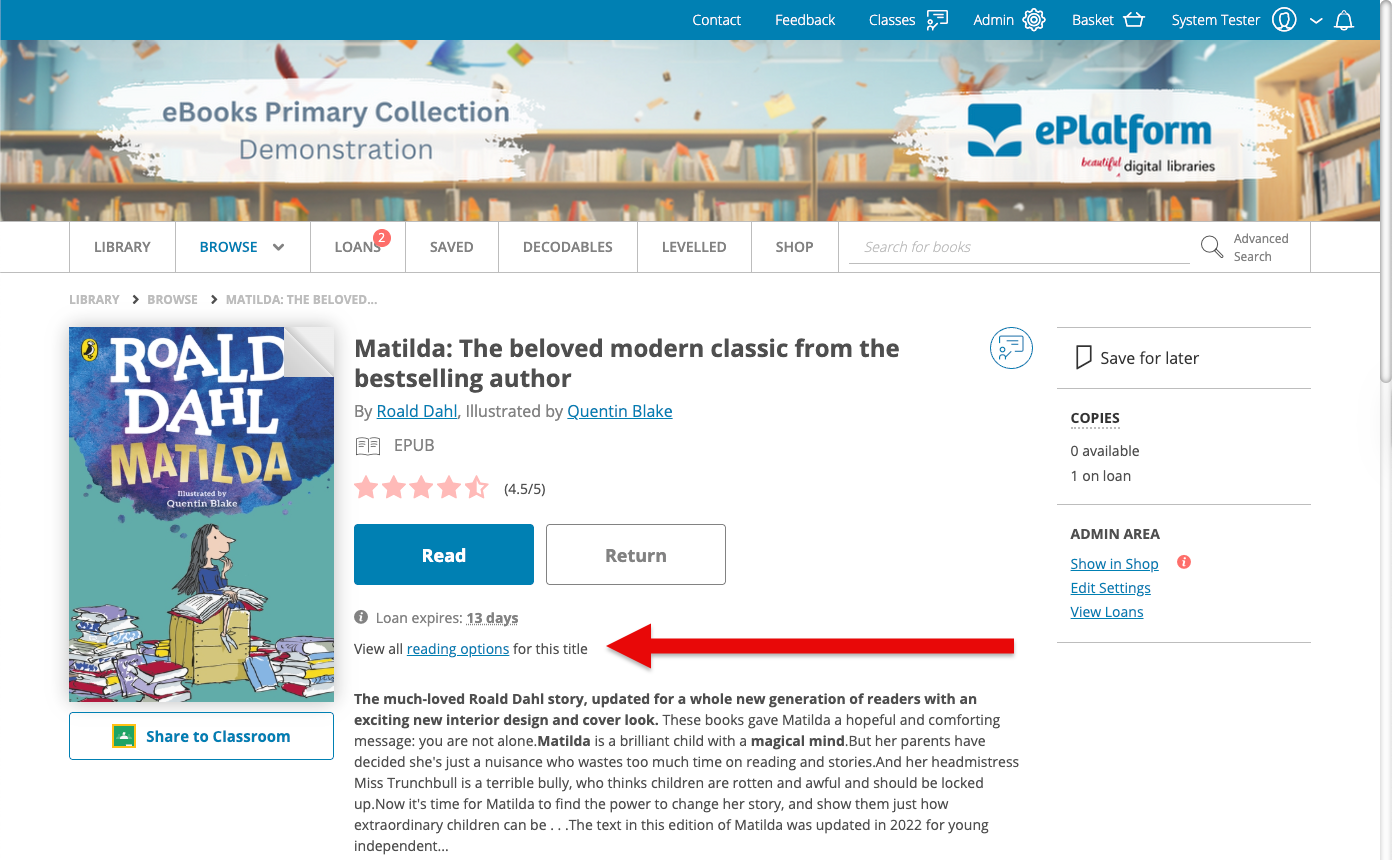
- After borrowing, click View all reading options for this title.
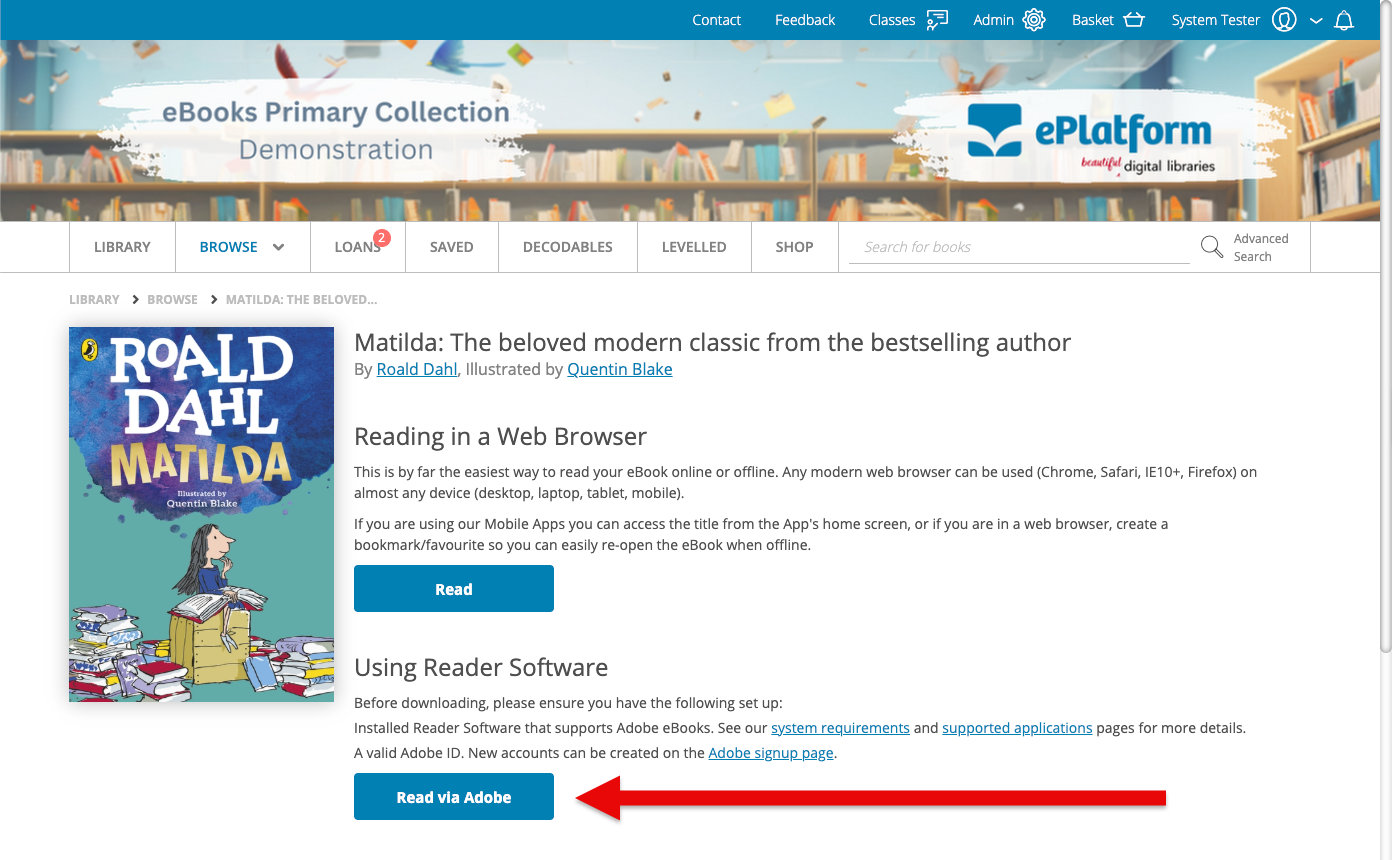
- Select Read via Adobe.
- A small .acsm file will download to your computer.
Step 4. Open the eBook in Adobe Digital Editions
- With Adobe Digital Editions open, use the top menu to select File, then click Add to Library.
- From your downloads folder, select the .acsm file.
- Adobe Digital Editions will automatically open and download the full eBook.
- Once downloaded, the book will appear in your library and can be read offline or transferred to an eReader.
Step 5. Return an eBook Early (Optional)
eBooks automatically expire at the end of the borrowing period, but you can return them early if you finish sooner.
- Open Adobe Digital Editions.
- Find the title you want to return.
- Right-click on the book and select Return Borrowed Item.
Supported Devices
Adobe Digital Editions works on Windows PCs, Mac computers, and eReaders that support Adobe DRM, including Kobo, Nook, and PocketBook.
If you are using a tablet, Chromebook, or smartphone, the ePlatform App or Web Browser will provide a faster and easier reading experience.
Adobe Digital Editions vs Web Browser vs ePlatform App
ePlatform gives schools three ways to read eBooks, and each option is designed to suit different devices and classroom setups. The best option depends on how your students access books and what devices your school prefers to use.
The Web Browser is the quickest way to start reading. It works on almost any computer or tablet and does not require any software installation. Once an eBook has been opened, the full content is stored on the device, allowing students to keep reading even if they lose internet connection. It is simple, instant, and ideal for classroom use.
The ePlatform App offers a similar experience but is designed for tablets and mobile devices. Students can download the app on their iPad, iPhone, or Android device and access the same library anywhere. The app includes accessibility tools such as dyslexia-friendly fonts, colour contrast settings, and offline reading, making it a great option for younger readers or those who prefer to read on the go.
Adobe Digital Editions is a more specialised option. It is mainly used by schools that have eReaders such as Kobo, which are not compatible with the ePlatform App or Web Browser. With Adobe Digital Editions, schools can download borrowed eBooks and transfer them to these devices for reading offline.
For most students, the Web Browser or ePlatform App offers the best experience. Adobe Digital Editions simply provides another option for schools that use eReaders or need an alternative way to access their digital collection.
FAQs about Using Adobe Digital Editions with ePlatform
What is the difference between the ePlatform App, Web Browser, and Adobe Digital Editions?
The Web Browser and ePlatform App are the main ways to read eBooks on ePlatform. Adobe Digital Editions is mainly used when schools want to transfer borrowed eBooks to eReaders such as Kobo.
Do I need an Adobe ID to use Adobe Digital Editions?
Yes. An Adobe ID is a free account that lets you open borrowed eBooks securely and transfer them between authorised devices, such as your computer and an eReader.
What is a .acsm file?
An .acsm file is an Adobe Content Server Message file that is not the actual eBook, but a link to authorise and download it. These files are used for Adobe DRM-protected content, such as eBooks, and must be opened with Adobe Digital Editions to download the full book (usually in EPUB or PDF format).
Can I use Adobe Digital Editions on a Chromebook or tablet?
Adobe Digital Editions is designed for Windows and macOS computers, and for eReaders such as Kobo and Nook. For Chromebooks and tablets, the ePlatform App or Web Browser is recommended instead.
Do I need Adobe Digital Editions to read PDF's on ePlatform?
No. PDF's can be opened directly in the ePlatform App or Web Browser. The only difference is that some reading features, such as the Settings Wizard or Immersive Reader, are only available for EPUB-format books.
Can I return a book early in Adobe Digital Editions?
Yes. Open Adobe Digital Editions, right-click on the title in your library, and select Return Borrowed Item. This will make the eBook available for other readers before the loan period ends.
Final Thoughts
For most schools, the ePlatform App and Web Browser provide everything students need to start reading. They are quick to access, easy to use, and work seamlessly across devices.
Adobe Digital Editions is simply another option for schools that use eReaders or prefer to download books to a computer for offline access. It extends flexibility without replacing the main reading experience that ePlatform already provides.
Together, these options give every student a way to read in the way that suits them best, whether that is through a browser, on a tablet, or with an eReader like Kobo.